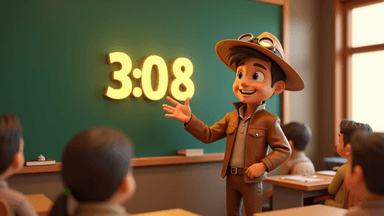
Scout the Archaeologist knows the secret to any quiet expedition: a visible signal everyone can read without a word spoken. In a classroom, a silent visual timer is that signal.
A single verbal countdown — "five minutes left" — breaks student concentration at exactly the wrong moment. A silent visual countdown lets students glance, recalibrate, and keep going. No interruption. No lost momentum. Just a quiet timer doing its job on the board.
Whether you're running a timed essay, think-pair-share, silent reading, or end-of-year exams, GoTimer's free classroom timer is purpose-built for silent, fullscreen countdown use.

Why Silent Timers Outperform Verbal Countdowns
There's a common instinct to count down verbally — "ten minutes… five minutes… two minutes…" — but each announcement has a cost. It interrupts students in flow, pulls focus to the teacher rather than the task, creates anxiety spikes (especially for students who struggle under time pressure), and trains students to wait for your cue instead of self-regulating.
A silent visual timer inverts all of this. Students take ownership of their own time awareness. Over weeks of consistent use, they develop an internal sense of pacing — a genuine study skill that transfers to exams, university, and beyond.
Classroom Timer
Free online timer — no signup required
How to Set Up a Silent Classroom Timer in Under a Minute
No dedicated app, no smartboard subscription, no account needed. Here's the full setup:
- Open GoTimer's classroom timer on the device connected to your projector or smartboard
- Set your duration using the number pad — type the minutes directly
- Mute or disable audio alerts (click the sound icon in the toolbar)
- Press Fullscreen so the countdown fills the entire display
- Click Start and begin the activity
The timer runs in any modern browser. If you're switching between slides and the timer during a lesson, use a separate browser tab — you can flip back without stopping the count.
Matching Timer Duration to Activity Type
Choosing the right duration is one of the most practical decisions you make with a classroom timer. Too short and students feel rushed; too long and the timer loses its motivating effect.
A practical guide for common activities:
Think-pair-share: 1.5–3 minutes per phase. A tight timer for the thinking phase keeps students from drifting — they know they need something ready.
Quick writes and journaling: 5–8 minutes. Short enough to feel urgent, long enough to get past the opening stall.
Independent reading: 15–25 minutes. Silent reading benefits from longer, defined blocks. The timer signals a clear endpoint.
Small group tasks: 8–12 minutes. Groups naturally accelerate when they can see time ticking. Assign roles before starting.
In-class tests and assessments: Full allocated time, visible throughout. This is where a silent timer earns its keep — students self-manage their pacing without raising a hand to ask how long is left.
Exit tickets and reflection: 3–4 minutes. A short timer at lesson's end signals the wrap-up and focuses thinking on what matters most.
Study Timer
Free online timer — no signup required
Silent Timer Techniques for Different Classroom Moments
During Independent Work
Set the timer and step back. Circulate, give individual feedback, or note participation — all without breaking the class's focus. When the timer ends, a single visual cue (or a soft chime at low volume if your room allows) signals the transition.
For longer work periods, consider a "halfway check" approach: set two timers in sequence. When the first ends, prompt students to privately assess their progress before continuing. This builds metacognitive habits without interrupting flow.
During Collaborative Tasks
Group work benefits enormously from a visible countdown. Groups that can see their time tend to manage task phases — discussing, drafting, reviewing — without micromanagement. Assign someone in each group to watch the timer and notify the team at halfway.
During Examinations
For formal assessments, a large silent timer on the projector is far better than relying on the clock at the back of the room. Students can see exactly how much time remains at any moment without turning around or appearing to look at their neighbour's work.
Turn off all sound alerts. Run fullscreen mode. Step back. The timer handles time awareness while you handle invigilation.

During Transitions
Packing up, rearranging seating, or switching from group work to whole-class discussion — transitions without structure eat 3–5 minutes. A 60 or 90-second countdown creates just enough pressure to get students moving. No words needed.
Countdown Timer
Free online timer — no signup required
The Fullscreen Advantage
The difference between a partial browser window and a true fullscreen countdown on a projector is significant. In fullscreen:
- Digits are large enough to read from the back row
- No distracting browser tabs, toolbars, or notifications
- The display looks intentional — students take it more seriously
- You won't be tempted to switch tabs and accidentally kill the timer
GoTimer's classroom timer has a dedicated fullscreen button in the toolbar. Click it once before class, leave it running. Press Esc to exit when you need to navigate back to your slides.
Building a Timer Routine That Works
The most effective use of a silent timer isn't a single activity — it's a classroom routine. When students see the timer appear on the board consistently, they learn over time: work is starting, the duration is set, focus now. This conditioned response reduces settling time and increases genuine learning time each period.
Try using the same timer tool consistently for 3–4 weeks. The routine itself becomes part of your classroom management — no drama, no repeated instructions, just the clock and the work.
Silent Timers for End-of-Year Activities
May and June bring particular challenges: exam revision, project deadlines, and students whose attention is drifting toward summer. A silent timer is especially useful in these final weeks.
For revision sessions, try a rapid-fire structure: 10 minutes focused review, 2-minute quiz, 3-minute group discussion. Run each phase on a silent timer. The structure keeps energy productive without verbal management of transitions.
For end-of-year presentations and student speeches, a visible timer ensures every speaker respects their allocation — and the audience knows when to expect transitions. GoTimer's presentation timer is purpose-built for this if you're running a speaking event.

A Final Note on Sound
Some timers include a ticking sound throughout the countdown and an alarm at the end. For most classroom settings, these are more disruptive than helpful.
A gentle end-alert at low volume can be useful when you need to signal a transition from across a noisy room. But during quiet independent or exam work, silent is almost always better. Let the display do the work.
GoTimer gives you full control. Start silent, add a soft alert only if your room genuinely needs it. One tool, every classroom scenario.